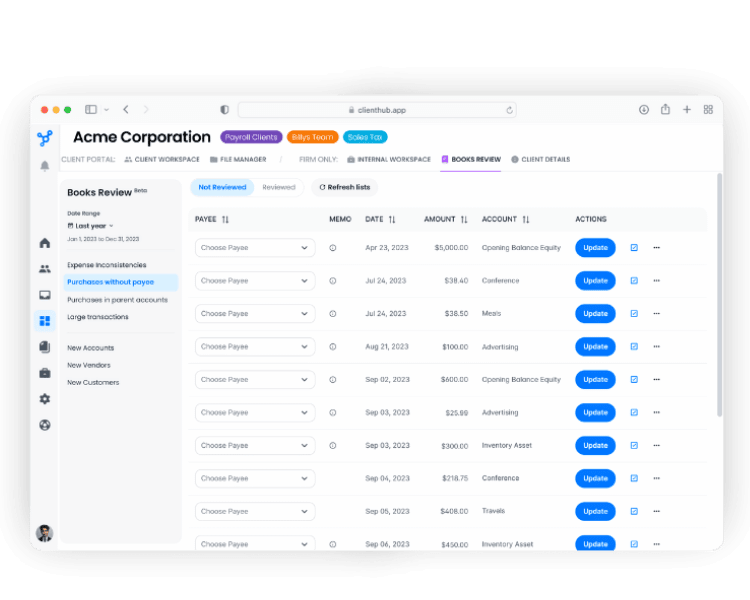

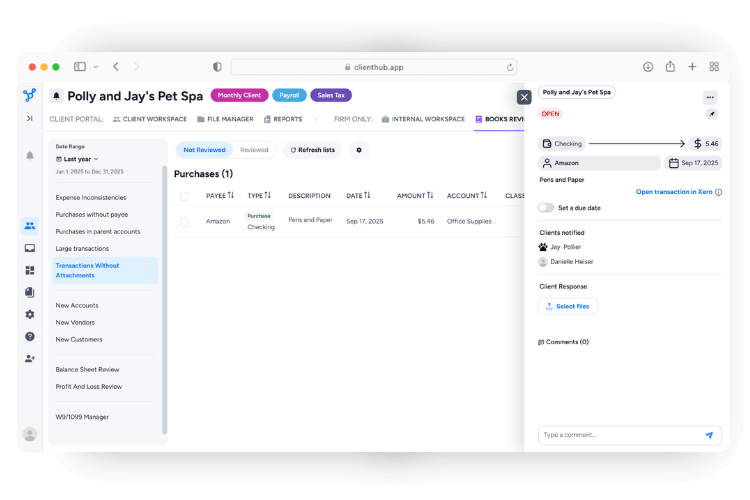
Client Hub scans your Xero file and surfaces what needs attention in one queue: expense inconsistencies, missing payees, missing attachments, large transactions, and new accounts, vendors, or customers flags. Clients add context and receipts, your staff approves, and updates post back to Xero in a single click. For any item, you can recategorize, comment internally, send a client task, run AI analysis, or open the record directly in Xero.
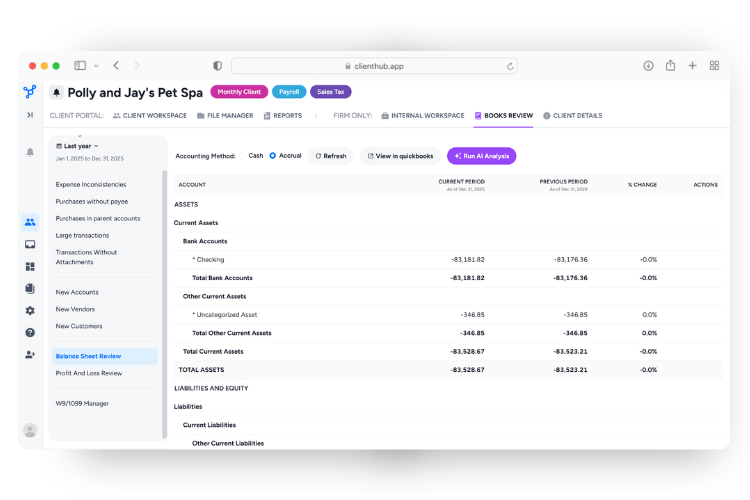
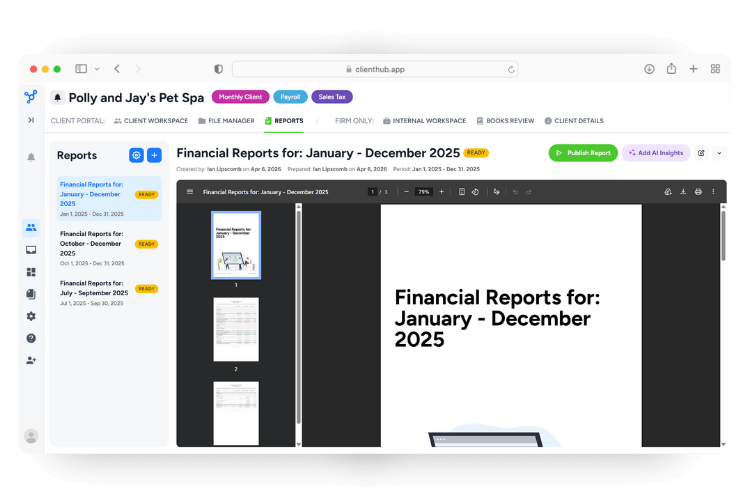
Pull Balance Sheet and P&L reports straight from Xero inside Client Hub, with custom periods, period-over-period comparisons, and cash or accrual views. Every report includes an optional AI-generated summary that highlights what changed and what clients are likely to ask about. Generate a clean PDF, download it, email it, or publish it directly to selected clients through their client portal.
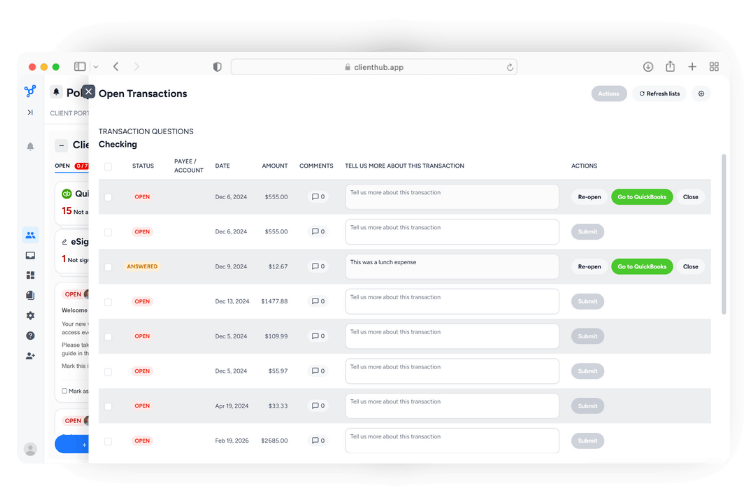
Clients open a transaction, add context, and upload receipts inside Client Hub. Your team reviews the answer, approves it, and posts the update. Every change, including attachments, syncs back to Xero automatically. Your Xero file stays complete without anyone having to re-upload a single receipt.


When you first integrate Client Hub with Xero, the platform automatically syncs the most recent 90 days of Spend Money transactions posted to your mapped accounts.
No. Client Hub is the bookkeeping software that integrates best with Xero, and features true two-way sync. Updates and attachments made in Client Hub automatically reflect in Xero without you needing to manually open the transaction.
Expense inconsistencies, missing payees, missing attachments, large or unusual transactions, new accounts, new vendors, new customers, and flags from a Balance Sheet or P&L review. For each item, your team can recategorize, comment internally, send a client task, run AI analysis, or open the record directly in Xero.
Balance Sheet and Profit & Loss, with custom periods, period-over-period comparisons, and cash or accrual views. Every report can include AI-generated insights, and you can generate a PDF, download it, email it, or publish it to selected clients through their Client Hub portal.
To confirm your integration is working properly, manually create a Spend Money transaction in Xero and assign it to your target account. Don’t use a bank feed for the test. Then open the Client Task panel in Client Hub and select "Sync transactions from Xero" to confirm that everything is connected.
Only bank feed transactions dated after the connection between Xero and Client Hub was established will sync. Older bank feed items will not appear in Client Hub.
Deleting a Xero Client Task permanently removes the files associated with that task from all locations in Client Hub. Always download copies of important files before deleting any task.
You must be a Client Hub Admin and have access to the client's company in Xero to authorize the connection and select accounts for monitoring.

.svg)


.svg)


.png)