
Keeping track of what's due and when shouldn't mean piecing it together from a list. That's why we've added Calendar View to the Jobs Dashboard. It’s a new way to see your open jobs laid out by due date, right alongside List and Cards!
The Calendar View shows your open jobs on a month, week, or day grid, organized by due date. We developed this with planning in mind: instead of scanning a list to figure out what's coming up, you can see your team's workload spread across the calendar at a glance.
Where to find it: Go to Dashboards → Jobs, then click the calendar icon under "View as."
Make It Yours
Click the gear icon next to the day/month selector to customize how the calendar looks:
Whatever you choose will be saved in your browser as a personal preference, so the calendar looks the way you want it every time you come back.
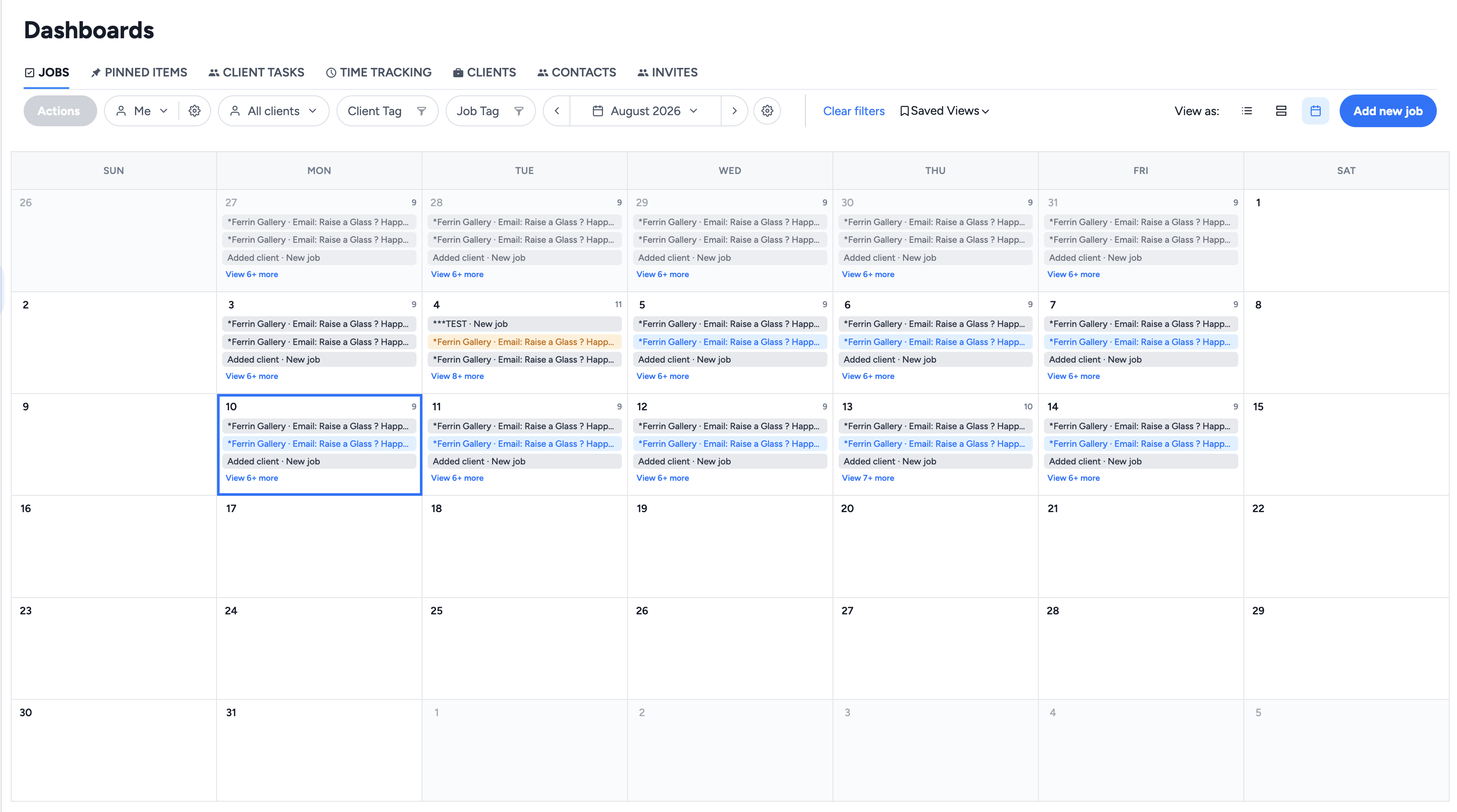
Jobs appear as chips on their due date (or task group due date, depending on your settings). Click any chip to open that job directly. The same person, client, and tag filters you use elsewhere in Jobs apply here too, so you're always looking at the workload that matters to you. Completed jobs and jobs without a due date won't clutter the view. They simply won't show up!
Calendar View is especially handy for planning workload around deadlines and spotting crunch points before they sneak up on you. One thing to note for this first release though: you won’t be able to drag and drop jobs to reschedule them yet; you'll need to open the job to change its date. Also worth knowing is that every time you open Calendar View, it should bring you straight to today’s date, whether that's the current month, the current week, or today's date on the day view.
Give it a try and let us know what you think!
For a full walkthrough of the Jobs Dashboard including Card View, List View, and how filters work across all three, check out Understanding the Jobs Dashboard in Client Hub.

.svg)


.svg)
